Overview
This course uses several software tools: n8n for building AI agents, OpenAI for LLM access, Lovable for creating apps, and various Google services. This document helps you set up everything you need.
For each service that requires API access, we will create an API key. This is a form of authorization that lets a program prove that it’s allowed to access the API.
This document is organized into two main sections:
- Before the Class gives information on setting up accounts before the class starts so that you are ready when we begin.
- Connecting During the Class explains how to connect these products within n8n. This will be done during the lectures and recitations but you are free to get this set up earlier.
Before the Class
You need to complete five tasks before our first class:
- Create your n8n account (you should have received an invite)
- Choose a Google account to use with n8n
- Set up your OpenAI API access (including verification and adding credit)
- Activate your Lovable coupon (3-month free Pro access for Kellogg students)
- Join the Slack channel for course discussions and Q&A
1. Getting Started with n8n
You should have received an email that looks like this: 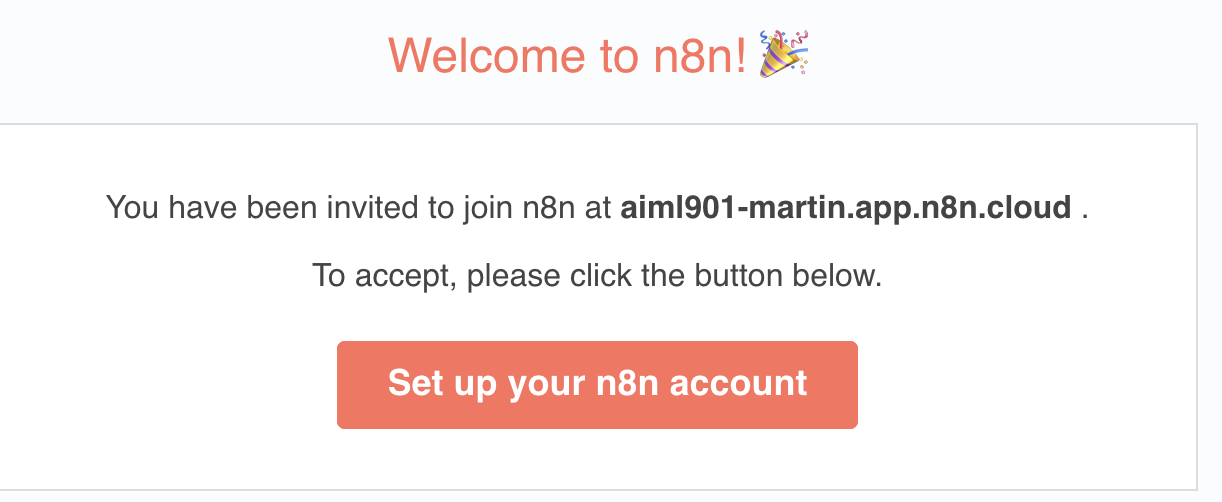 Create an n8n account using this email and you will be able to access our workspace.
2. Google Account
For the class, you can either use a personal Google account or create a new one specifically for this class. If you already have an account that you are willing to use, there is no action item here. Note that n8n will have access to your files in this account (Gmail, Calendar, Sheets, etc.).
3. OpenAI API Setup
In the recitations, all examples will use OpenAI’s GPT-5.2, one of the best models currently available. To use this model via the API, you need to:
- Create an OpenAI platform account
- Complete identity verification (required for GPT-5.2 access)
- Add credit to your account
- Create an API key
If you are not comfortable with the verification step, please reach out to us—n8n also works with alternative LLMs.
Step A: Create Account & Add Credit
- Log into https://platform.openai.com or make an account to get started. Even if you’ve used ChatGPT before, this interface might look slightly different.
- In the top right corner, click on
Settings(a gear icon) and then navigate toBilling.- If the gear icon doesn’t appear, you’ll see a button that says
Start building. Click on this and your organization name should be something likePersonal. Once you create an organization, skip the next step to invite your team, make your first API call, and add API credits. - Once you do these steps, the gear icon should appear in the top right. Click on this and then navigate to
Billing.
- If the gear icon doesn’t appear, you’ll see a button that says
- Add a payment method and then add $10 to your credit balance. This should be enough for the entire course. You can add more later if needed.
Step B: Complete Verification (Required for GPT-5.2)
This step is required to access GPT-5.2. Without verification, you will only have access to older models.
- Log into https://platform.openai.com. Click on
Settingsand then navigate toGeneral. - You should see an option called
Verification. Click theVerify Organizationbutton and follow the steps to complete the process. - Confirm verification is complete before proceeding—this can take a few minutes.
Step C: Create Your API Key
- In the top left, press the search button and search for “API keys” or navigate to https://platform.openai.com/settings/organization/api-keys
- Press
+ Create new secret keyand give it a name like “n8n connection”. - Save your key somewhere secure and copy it—you will not be able to access this key again beyond this screen. You will need to input it into n8n later. If you lose it, you can always make another API key.
4. Lovable Setup
Lovable is a tool that lets you create apps and websites using AI. Kellogg students get 3 months of free Pro access.
How to Activate Your Coupon
- Go to lovable.dev
- If you don’t have an account, click “Get started” and create an account
- If you already have an account, go to Settings → Plans & Credits
- Select Pro Plan 1 (100 credits). Make sure to choose the monthly plan
- At checkout, enter discount code: Kellogg
Payment Details
You may be asked to enter payment details, but you can cancel immediately after activating and still keep your 3 months of free access. We recommend doing this right away so you don’t forget!
If you already have a paid Lovable account, you’ll need to create a new workspace to redeem the code.
5. Slack Channel
Our Slack channel is the main place to ask questions, get help from the teaching team, and share resources with your classmates. It’s a public channel on the Kellogg Slack:
#aiml901-agentops
Make sure to join before the first class!
Connecting During the Class
OpenAI
- Sign in to https://aiml901-martin.app.n8n.cloud/signin. Next to the
Create Workflowbutton, press the small arrow and chooseCreate Credential.
- Choose
OpenAIand then hitContinue - For the API Key, put in the key that you previously made.
- Hit
Save. You should get a green box that says that the connection was tested successfully.
When you use an OpenAI node, you can now use this credential to access OpenAI models!
Google Product API Keys
We will show you how to get set up with Google Calendar, but the same idea holds for Google Calendar, Gmail, and other Google products. We recommend that you set this up for Google Calendar, Gmail, and Google Sheets.
- In n8n, next to the
Create Workflowbutton, press the small arrow and chooseCreate Credential. - Choose
Google Calendar OAuth2 APIand then hitContinue - This will take you to a screen where you can sign in with your Google account. Do this and you’re all set!
Getting Connected to Telegram
We can use Telegram to message n8n since it has a great interface for connecting chatbots.
Download the Telegram app on your phone to get started.
- In Telegram, open a new chat with BotFather and type
/newbot. It will then prompt you to name your bot. Follow the prompts until your bot is created. - When successfully created, a message will appear that says
Use this token to access the HTTP API. Copy the string of letters and numbers. - In n8n, click
Create Credentialand choose Telegram. Paste the token from Telegram into the Access Token field and then clickSave. - In Telegram, the message begins with
Done! Congratulations on your new bot. You will find it at, followed by a URL. Click on this link and hitStartto begin a chat with your bot.
Telegram Privacy
When you make a Telegram bot, this is technically accessible by anyone who knows the bot’s username. This means that other people could potentially message your bot. When we are linking an n8n workflow to Telegram, we should ensure that we only move forward if the message is from a whitelisted user (or, more restrictively, just yourself). Here is a great video showing both how to set up Telegram with n8n and also how to make sure that it only accepts messages from valid users. We will show a similar but slightly easier step in Recitation 1.